The Résumé Builder is where your résumé lives. You change the words, pick a design, check your score and download it, all on one page. Your changes save as you go. The pictures in this guide show a sample account with made-up details.
Try the Résumé Builder in the demoBefore you start
You need a career kit: answer the questions at Build a kit and Career Fast Pass writes a first draft from your real experience. Open the builder from Résumé in the menu, or from your Dashboard.
If you have more than one kit, the Working on box at the top of the menu picks which kit's résumé you're editing. Every tool follows the kit you pick.
Find your way around
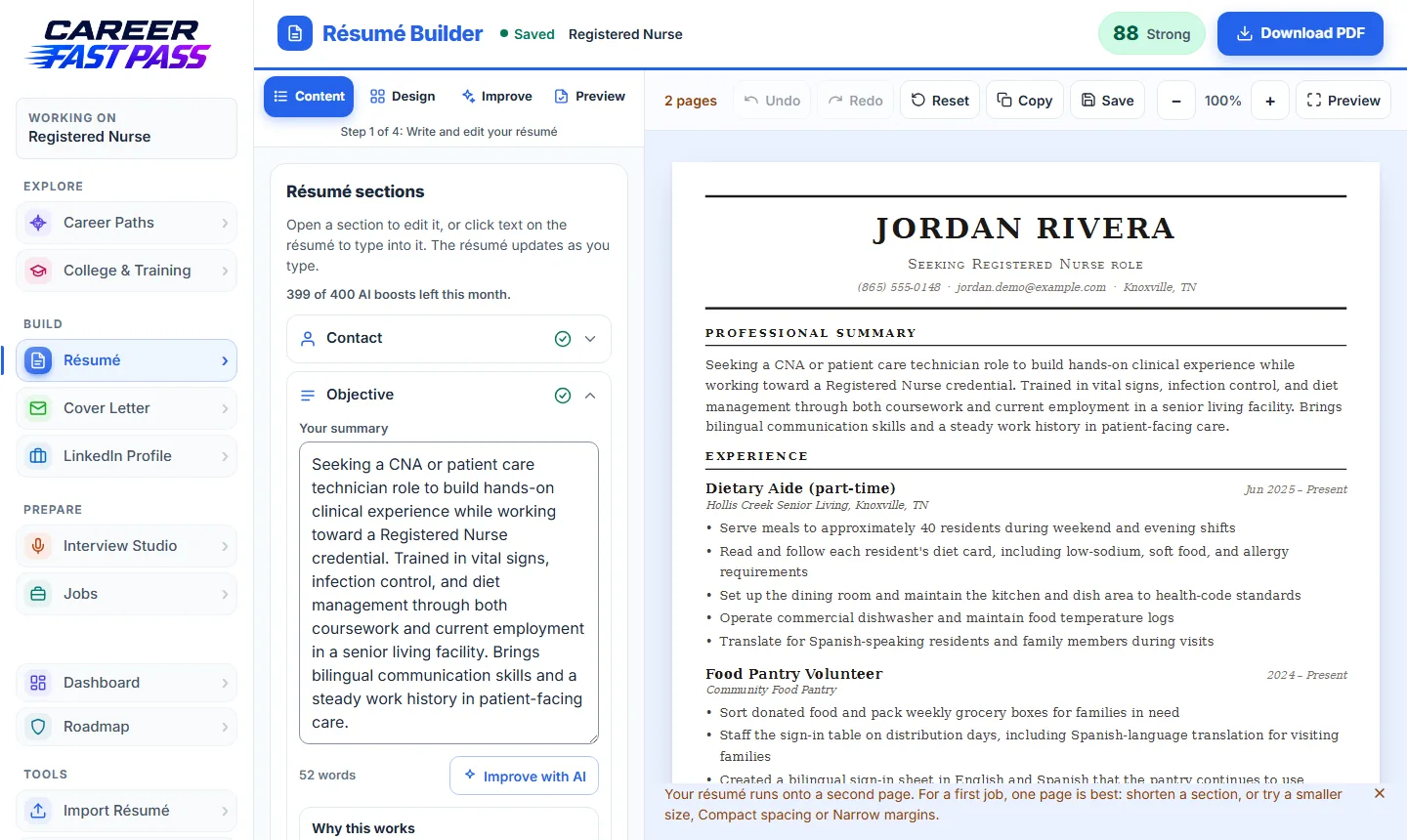
- The four steps along the top of the left side: Content, Design, Improve and Preview. You can move between them in any order.
- The page on the right is your real résumé, drawn the same way as the PDF.
- The toolbar above the page: the page count, Undo and Redo, Reset, Copy, Save, zoom, and Preview for a full-screen view.
- At the top: "Saved" tells you your changes are stored, the score pill opens the Improve step, and Download PDF is always there.
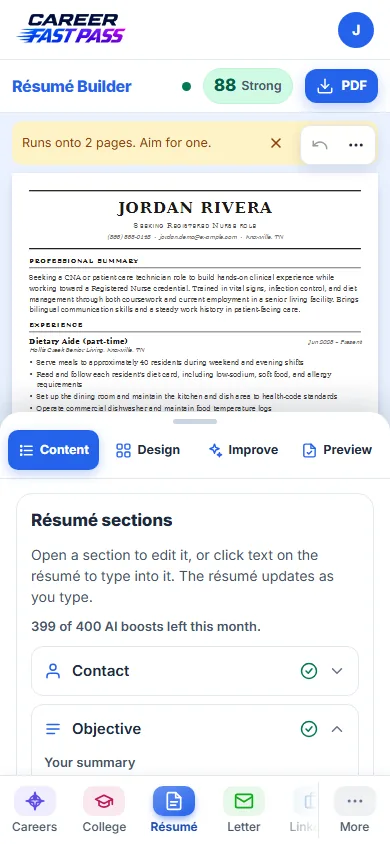
On a phone, the steps sit in a panel at the bottom. Drag its handle up or down to see more of the panel or more of the page.
Step 1: Content
- Open a section (Contact, Objective, Experience, Education, Skills and so on) to see its boxes. A green check means the section has what it needs.
- Type in the boxes. The page updates as you type.
- Or click text right on the page and type there. Where a line combines several boxes, clicking it opens the right box on the left.
- To add a section such as Volunteer Work, Awards or Languages, press + Add a section and pick a suggestion or name your own. Volunteer, school and team experience all count.
- To add a job, project or school, use the add button inside that section. Entries need a title (or a school name) to be saved.
- Next to a section or line, Improve with AI suggests a stronger wording. You see your version and the suggestion side by side and choose Use suggestion, Edit suggestion, Try another or Keep mine.
AI only reshapes wording. It never adds jobs, numbers or results you didn't write, and nothing changes until you choose a suggestion. Read each one and make sure it's true before you use it.
Made a mistake? Undo brings it back. Reset returns the text to the first draft from your questions; your design choices stay, and Undo can bring your version back.
Step 2: Design
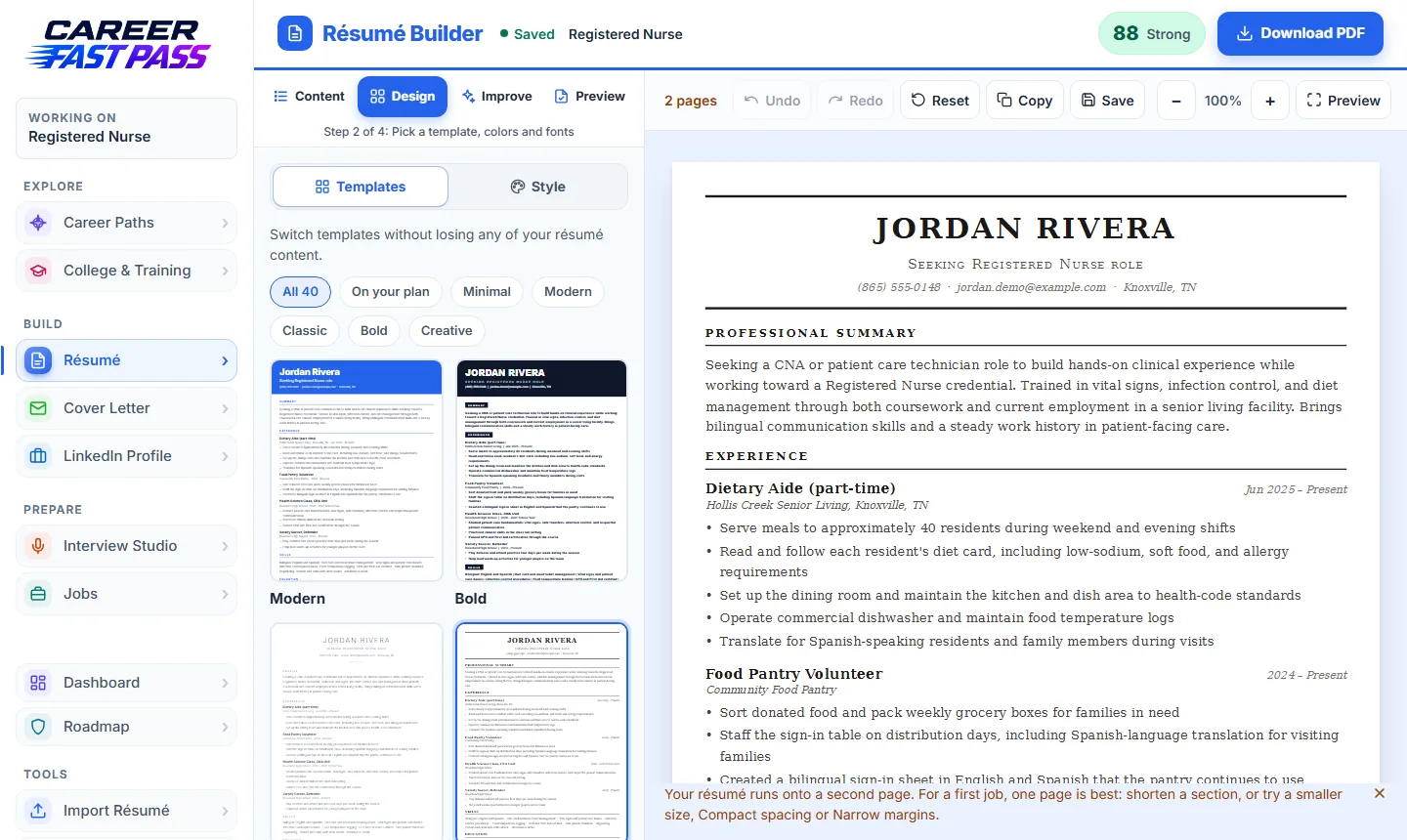
Templates
- Open Design, then Templates.
- Filter by look (Minimal, Modern, Classic, Bold, Creative) or choose On your plan to see only the ones you can use.
- Click a template. It applies at once, and you can switch back any time without losing anything.
Style
- Font style and Accent color (Starter and up).
- Font size, Section spacing, Side margins, Top and bottom margins and Color palettes (Plus and up).
- Reset to defaults puts the template's own look back.
A photo (Starter and up)
Seven templates have a spot for a photo: Linear, Horizon, Canvas, Aurora, Anchor, Halo and Stride. Press Add a photo, drag and zoom it in the circle, and save. You can hide it on a résumé without deleting it.
In the US, most employers prefer résumés without a photo, because it helps avoid bias. Add one only if it's normal for the job, or you're applying outside the US.
Joined through your school? Use my school colors sets the accent color to your school's color.
Step 3: Improve
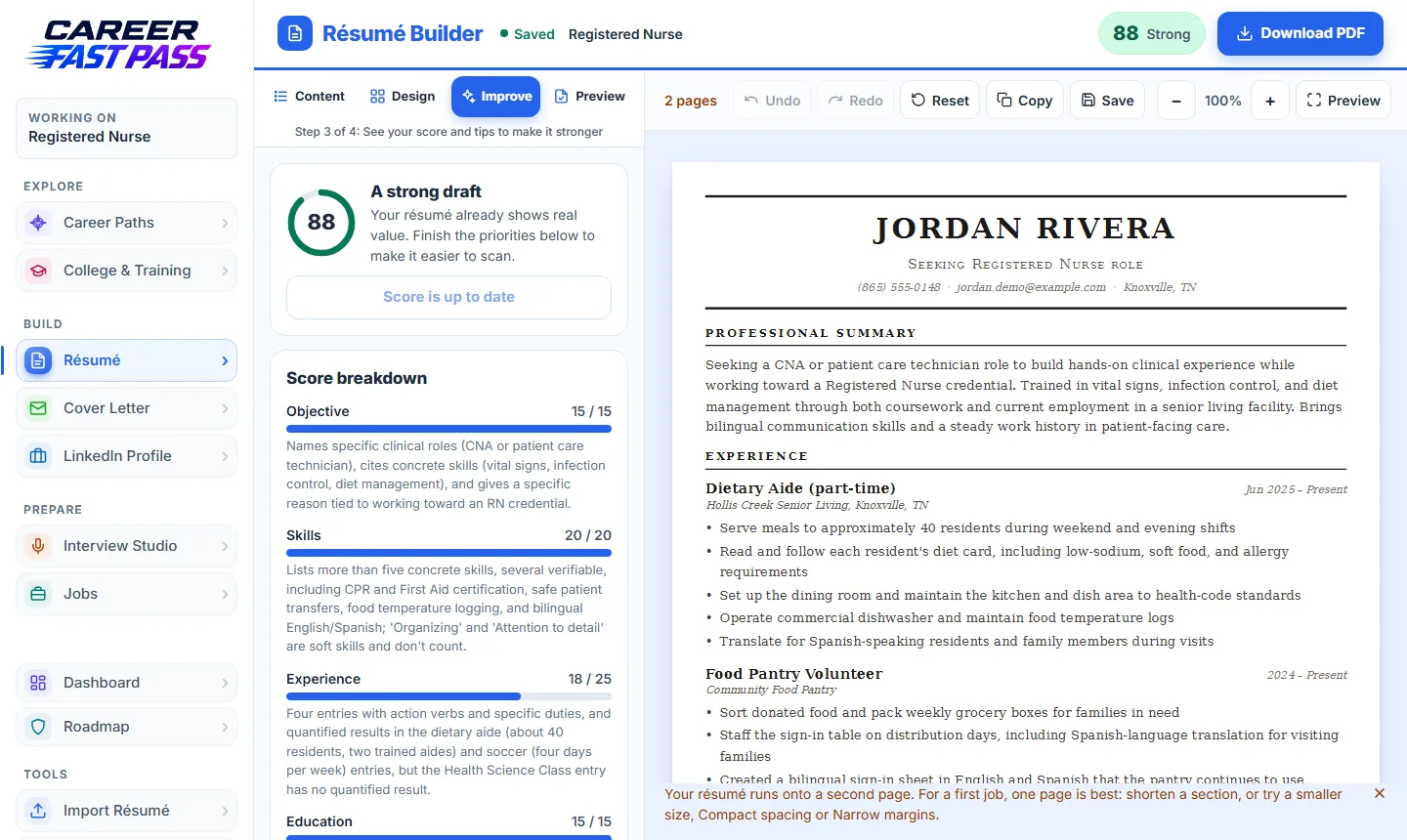
Your résumé gets a score out of 100 that measures how clear and complete it is, not how much school or work you've had. Under the score:
- Score breakdown: each part (contact info, objective, skills, experience, education and overall polish), its points and a note on why.
- Top priorities: the changes that would help most. Fix it for me rewrites just that part (1 AI boost). Fix all of these for me rewrites the whole résumé to address them (3 AI boosts).
- After you edit, the score shows that it's out of date. Press Update my score to score it again (3 AI boosts). An unchanged résumé keeps its score for free.
Fixes change wording only, never your facts, and Undo brings your version back. For what each part measures, see Raise your résumé score.
Step 4: Preview and download
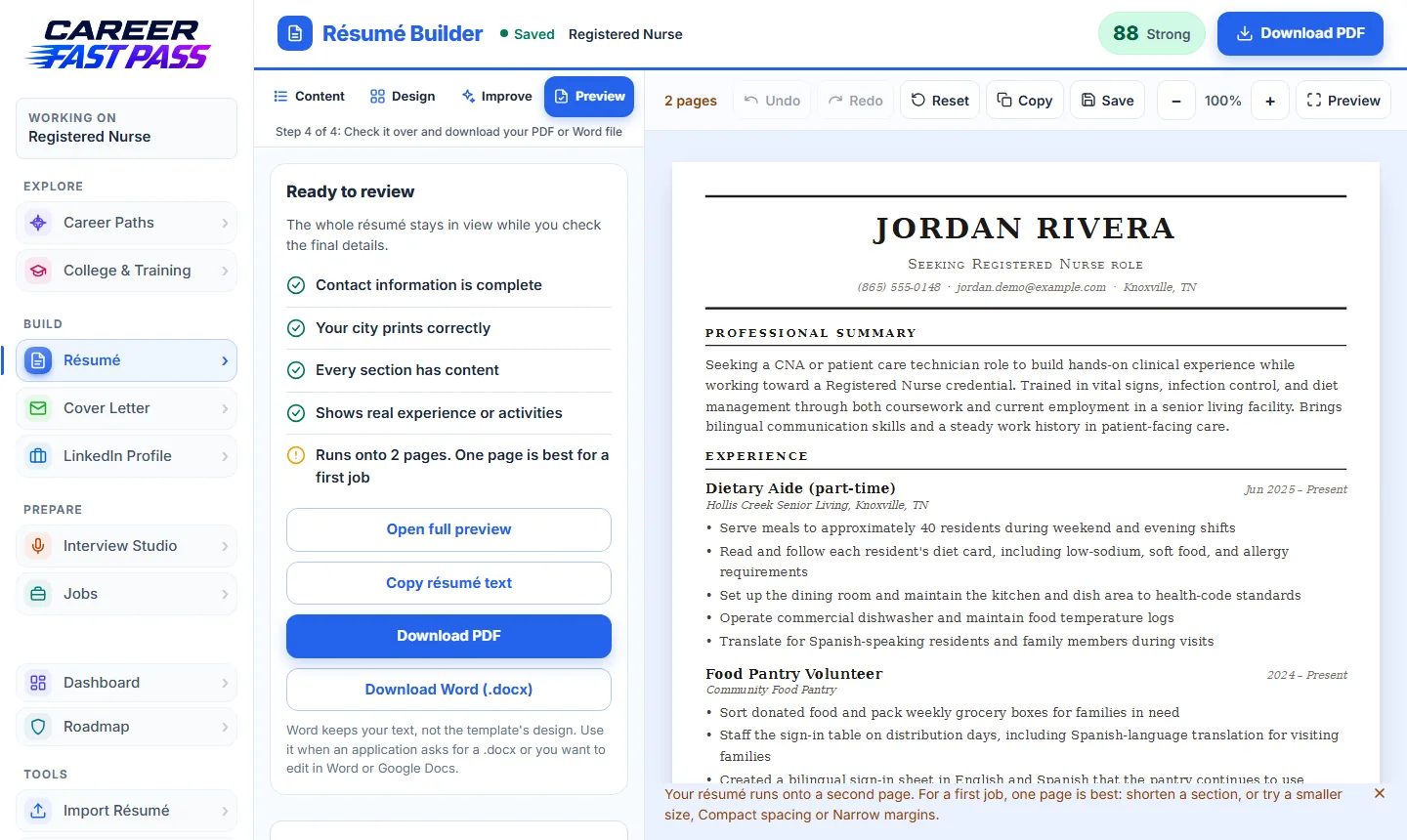
- Read the checklist: contact details complete, your city prints correctly, empty sections (they won't print), real experience, and whether it fits on one page.
- Open full preview shows the whole résumé, page by page.
- Download PDF gives you the finished file to send to employers.
- Download Word (.docx) gives you your text in a simple Word file, for applications that ask for one or to edit in Word or Google Docs. It doesn't keep the template's design.
- Copy résumé text copies plain text for pasting into an online application form.
Want your résumé, cover letter and the rest of your kit in one file? On your Dashboard, open the kit's menu and choose Download full kit (PDF).
AI boosts
AI suggestions use AI boosts from your monthly allowance; the Content step shows how many you have left. Free includes 10 a month, Starter 60, Plus 200, Pro 400 and School 300. They reset each month.
| Action | Boosts |
|---|---|
| Improve with AI on a line or section | 1 |
| Fix it for me (one priority) | 1 (3 for whole-page fixes) |
| Fix all of these for me | 3 |
| Update my score | 3 (free if nothing changed) |
What each plan includes
| Plan | In the Résumé Builder |
|---|---|
| Free | 4 templates (Modern, Bold, Minimal, Classic), every editing tool, score and tips, PDF and Word downloads. |
| Starter | 10 templates, font style, accent color and a photo. |
| Plus and Pro | All 40 templates, plus font size, spacing, margins and color palettes. |
| School | Everything in Pro. |
Templates and controls your plan doesn't include show a padlock. See Pricing.
Tips for a stronger résumé
- Aim it at one job. Make a kit for each job you're serious about.
- Use real details. How many people, how often, which tools. Only add numbers you can stand behind in an interview.
- Lead with your strongest five bullets. The PDF prints the first five bullets of each entry. (The Word file keeps them all.)
- Name concrete skills. "Cash handling" and "Microsoft Excel" say more than "hard worker".
- Keep it to one page if you're early in your career. The page count above the résumé tells you if it runs over.
- No job yet? Volunteering, school projects, clubs, sports and caring for family all count.
If something isn't working
- My résumé runs onto a second page.
- Shorten a section, or try a smaller font size, Compact spacing or Narrow margins (Plus and up). Removing an empty or old section helps too.
- A section opens as plain text instead of boxes.
- That happens when a section is in a shape the boxes can't hold without changing it, such as text you edited by hand. Edit it as text; nothing is lost.
- A template or style has a padlock.
- It's part of a higher plan. Everything else keeps working.
- "You're out of AI boosts."
- Your boosts reset at the start of next month. You can still edit everything by hand.
- The download doesn't show my latest change.
- Wait until the top says "Saved", then download again. The download buttons save first, but a lost connection can stop that.
- The fonts in the PDF look slightly different.
- The PDF can only use fonts it can embed, so the builder offers only those. What you see on the page is what prints.