Jobs is your job-search home base: find openings, save the ones you like, and track every application from "applied" to "hired", with a suggested next step for each. It's free on every plan. Career Fast Pass never applies for you; you stay in control. The pictures show a sample account with made-up details.
Try Jobs in the demoFind jobs
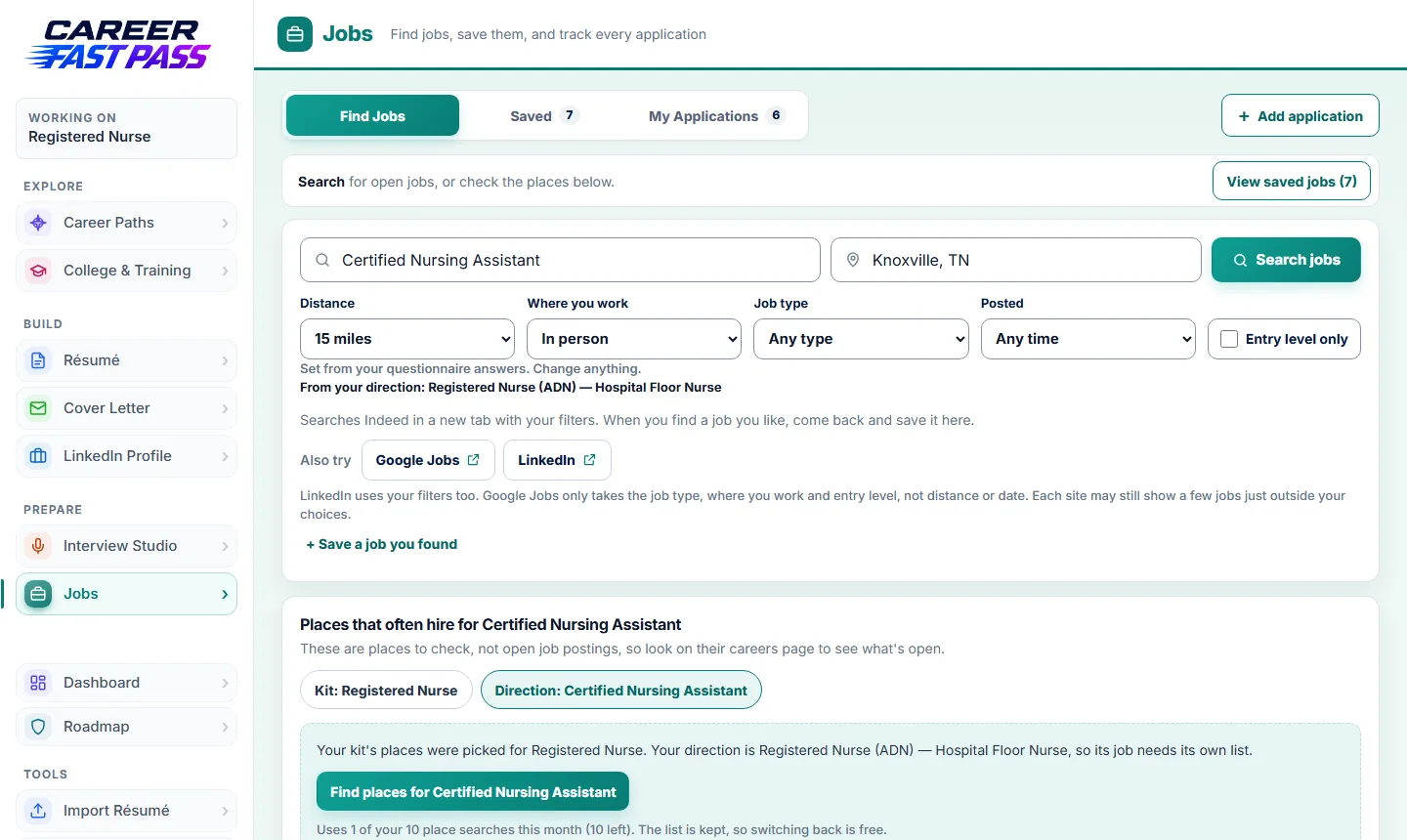
- Open Jobs in the menu, then the Find Jobs tab.
- Enter the job and the town or city you want to work near.
- Set the filters you care about: distance, in person, remote or hybrid, part-time or full-time, how recently it was posted, and Entry level only.
- Press Search jobs. Indeed opens in a new tab with your filters. LinkedIn and Google Jobs links under Also try use your filters too (Google Jobs ignores distance and date).
- Found one you like? Come back and press + Save a job you found, then paste its link.
Places that often hire (Starter and up)
Under the search, Career Fast Pass lists local places that often hire for your job. These are places to check, not job postings, so look at each one's careers page to see what's open. If you've chosen a career direction, you can also see places for that direction.
Save jobs
The Saved tab holds jobs you're thinking about. Saving doesn't mean you applied. When you do apply, press Yes, I applied on the job and it moves to My Applications.
Track your applications
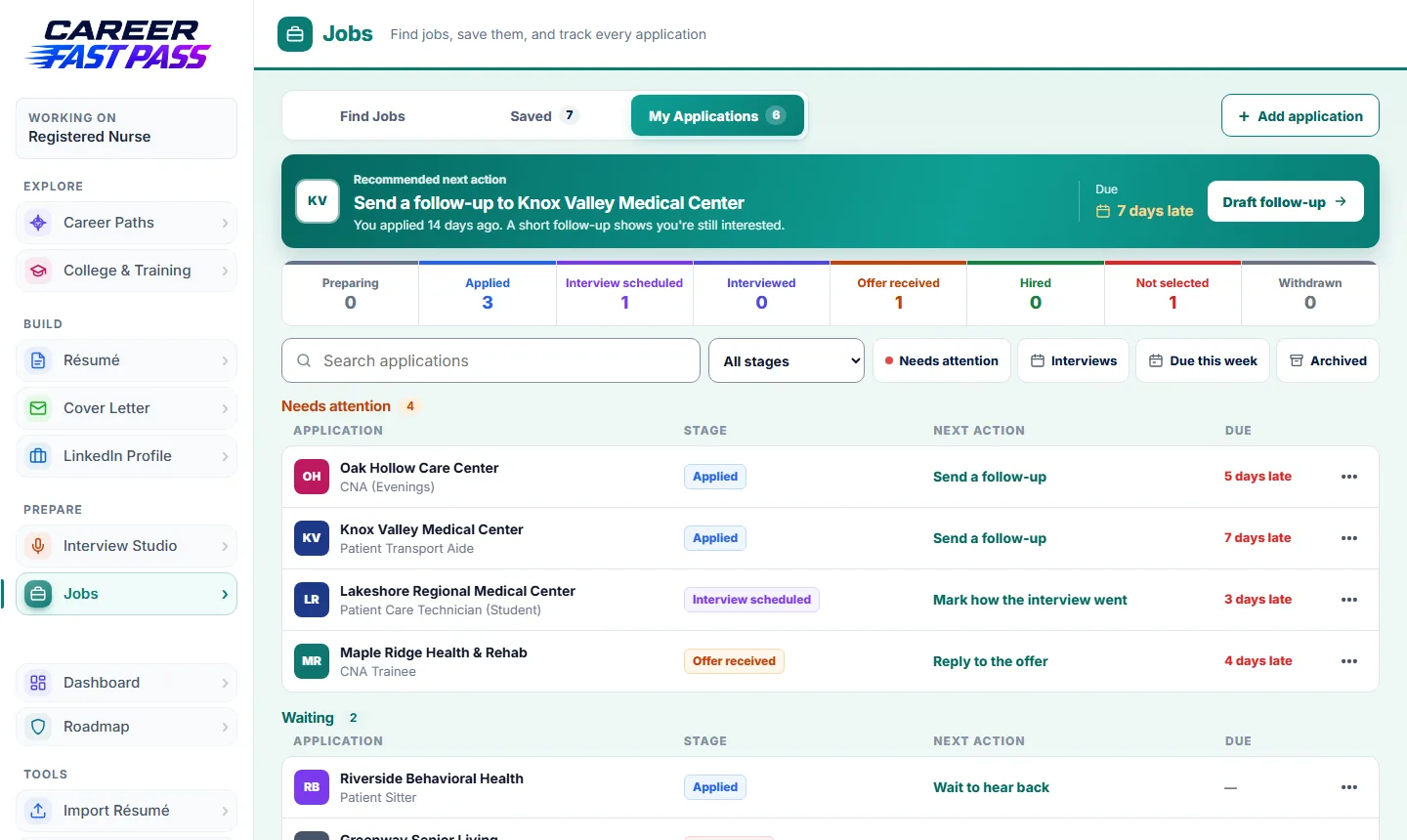
- Open My Applications. Add one you applied to elsewhere with + Add application: job title, company, a link (optional), where you applied, the date and notes.
- Each application shows its stage and your next action. Move it along as things happen: Preparing, Applied, Interview scheduled, Interviewed, Offer received, Hired, Not selected or Withdrawn.
- Use the filters to see what Needs attention, your Interviews, what's Due this week, or your Archived applications.
- Open an application to see its whole journey: when you applied, followed up and interviewed, with your notes.
Next steps: follow-ups, interviews and thank-yous
- Follow up: about 7 days after you apply, Jobs suggests a follow-up. Press it for a starting message, change it so it sounds like you, then Copy it or Open in email. Press I sent it when it's done.
- Interviews: add the date and time (and where it is, if you like). Add to calendar puts it in Google Calendar or Apple and Outlook calendars with reminders.
- Thank-yous: the day after an interview, Jobs suggests a thank-you note.
- Getting ready: from an interview, jump to Interview Studio to prepare for that job.
Email heads-ups
Turn on the heads-up emails from the card on the Jobs page. We'll email you the day before an interview, when it's time to follow up and when to send a thank-you. Never more than one email a day, and every email has a link to stop them.
Application Packs (Pro)
For one job, an Application Pack gives you answers to the application's questions, a cover letter, five talking points, how to apply, and the gaps to fill. It's written only from your own kit, and anything it can't back up is marked for you to add. Pro includes 20 a month; opening a pack you already made again is free. Use in Cover Letter Builder copies the letter into your kit, and you can put your old letter back.
What each plan includes
| Plan | Jobs |
|---|---|
| Free | Search, save and track applications, next steps, calendar links and email heads-ups. |
| Starter and Plus | Adds places near you that often hire for your job. |
| Pro | Adds 20 Application Packs a month. |
| School | Everything in Pro. |
If something isn't working
- The search opened Indeed instead of showing jobs here.
- That's by design: Indeed has the live listings. Save the jobs you like back here to track them.
- I don't see places near me.
- That list is part of Starter and up, and it needs a city in your kit.
- I'm not getting the heads-up emails.
- Make sure you turned them on, your email is confirmed on your Account page, and the application has a date. See Not getting our emails?