Every career kit comes with a cover letter written for its job from your real experience. The Cover Letter Builder is where you make it yours: aim it at a specific employer, set the tone, pick a design and download it. It works like the Résumé Builder, with the same four steps. The pictures show a sample account with made-up details.
Try the Cover Letter Builder in the demoBefore you start
Open Cover Letter in the menu. It shows the letter for the kit in Working on at the top of the menu. The builder keeps one letter per kit, so if you write to several employers, download each version before you change it for the next one.
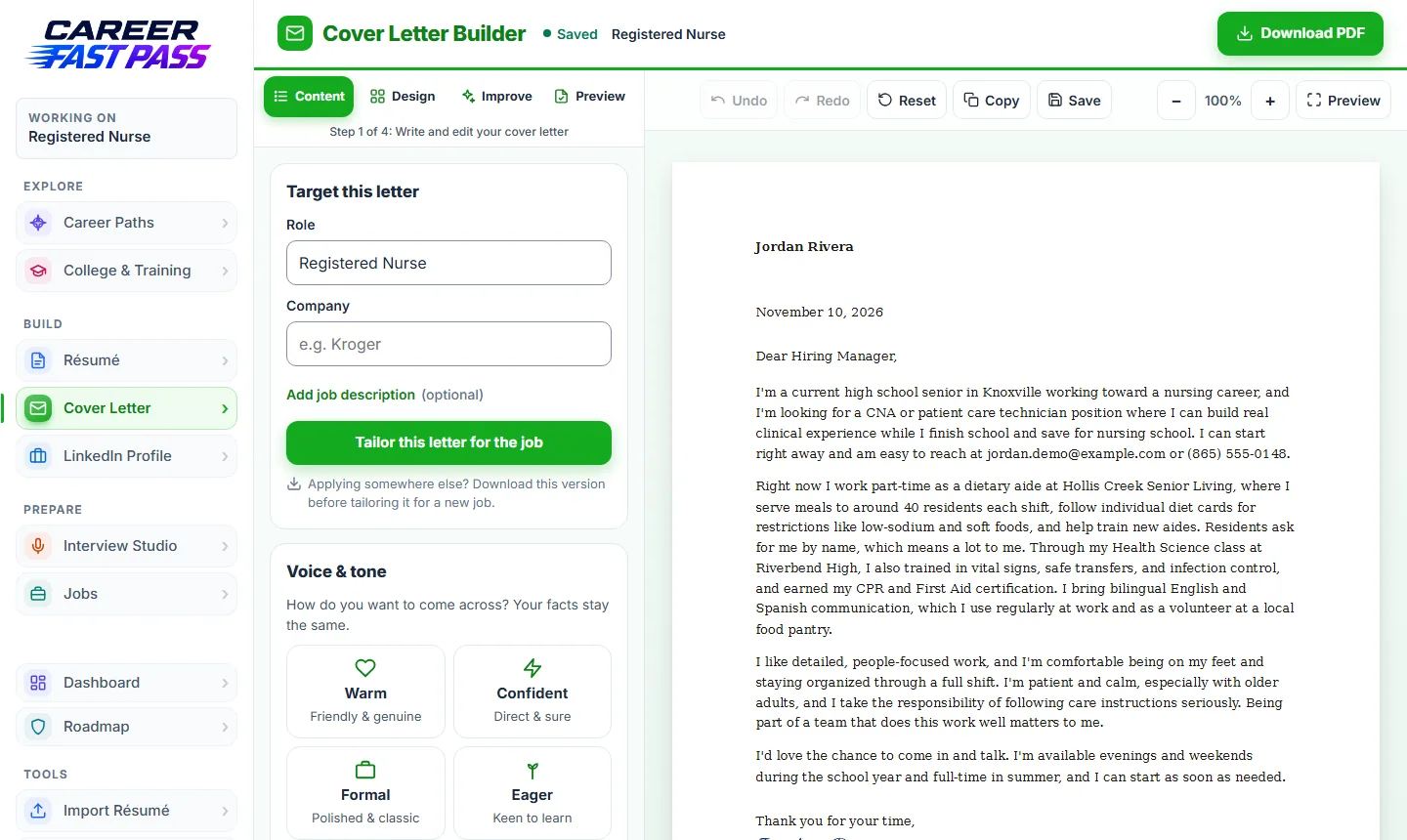
Step 1: Content
- Under Target this letter, fill in the Role and Company. They feed the greeting and the readiness checks.
- Under Build your letter, open each part to edit it: your contact details, the recipient, the date, the greeting, the opening, the body paragraphs, the closing, and the sign-off with your name.
- You can also click any text on the letter and type there.
- + Add a paragraph adds another body paragraph; each paragraph can be removed, and Undo brings it back.
- Under Voice & tone, pick Warm, Confident, Formal or Eager to reshape the wording. Your facts stay the same.
Tailor it to a job posting
- Open Add job description and paste the posting.
- Press Tailor this letter for the job.
- Choose Weave it in to keep your edits and add the job's details, or Create a fresh rewrite for a new draft built only from your real profile.
- Read the result and make sure everything in it is true.
Keep the old version? The tailoring window has a Download current letter button. Use it first if you'll want this version again.
Step 2: Design
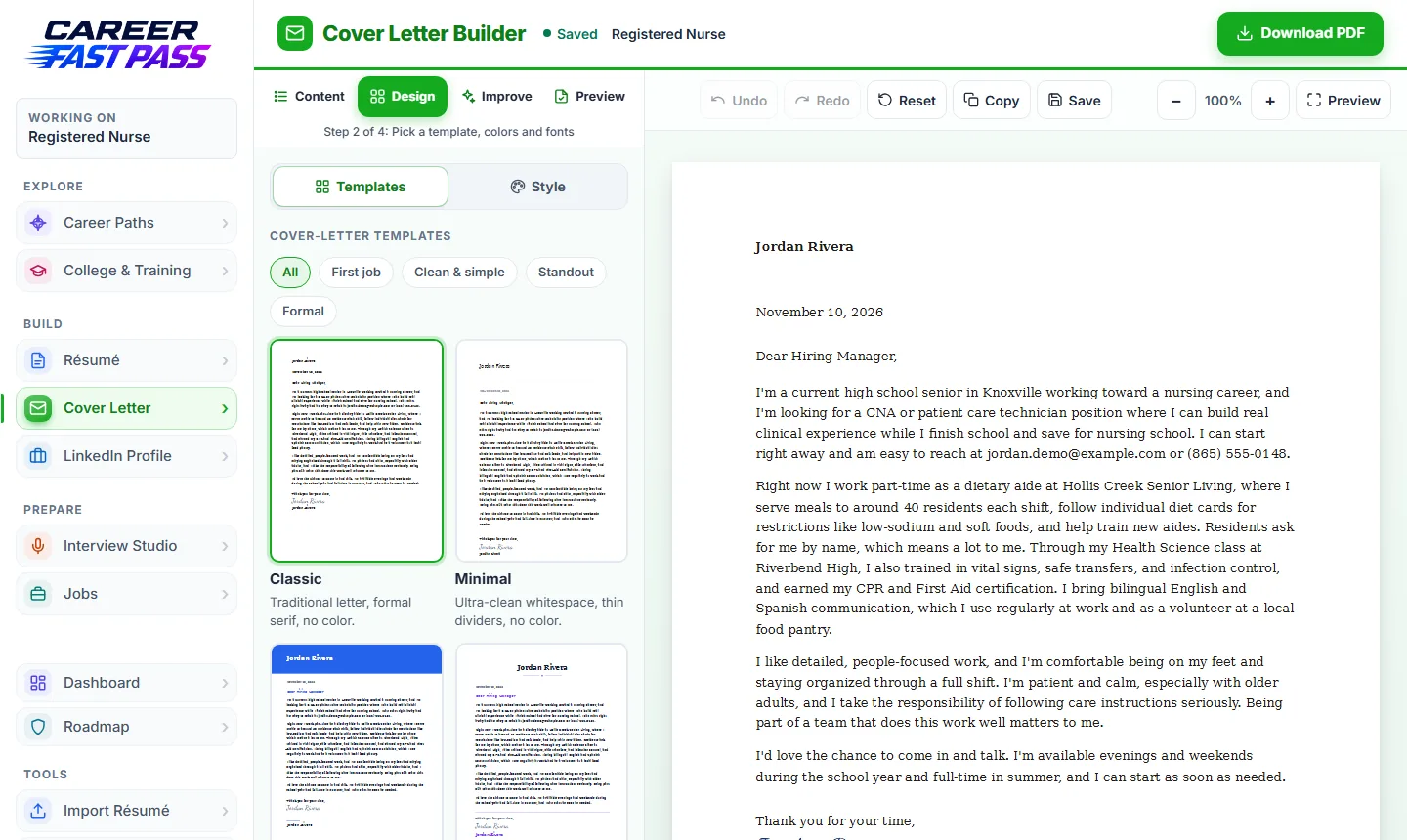
- Templates: Classic and Minimal on every plan, Modern on Starter and up, and Creative on Plus and up. Filter them by First job, Clean & simple, Standout or Formal.
- Style: font style and accent color (Starter and up); font size, margins and color palettes (Plus and up). Classic and Minimal don't use an accent color.
- Signature (every plan): your name in a handwriting style above your printed name, in the ink color you pick. Choose "No signature" to leave it off.
Joined through your school? Use my school colors sets the accent to your school's color.
Step 3: Improve
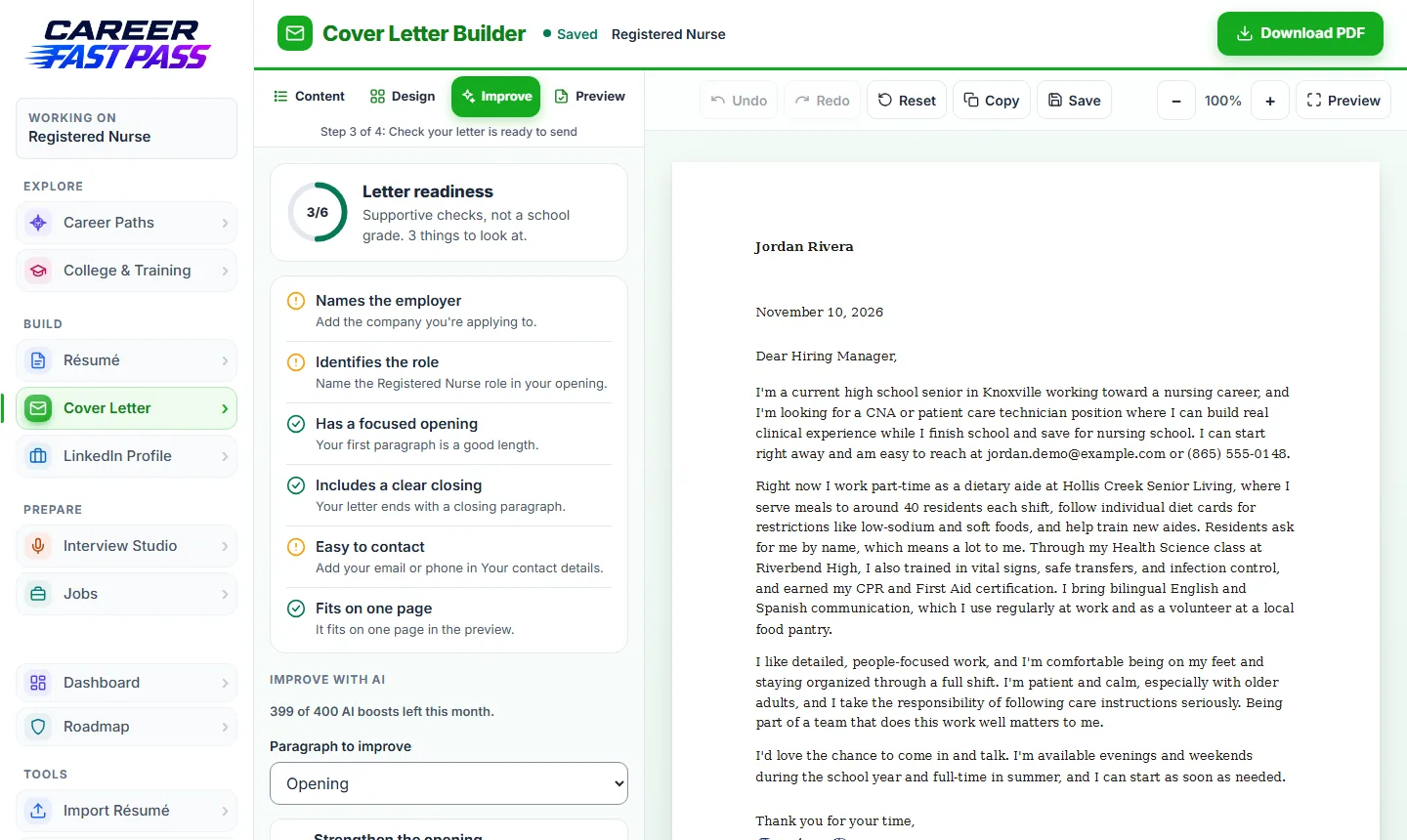
Letter readiness checks that your letter names the role and the employer, has a focused opening and a clear closing, includes a way to contact you, and fits on one page. Each item tells you what to add if it's missing.
Improve with AI works on one paragraph at a time. Pick the paragraph, then an action:
- Strengthen the opening
- Make this more specific
- Sound more confident
- Shorten this paragraph
- Tailor this to the role
- Improve the closing
You see the suggestion next to your version and choose Use this version, Try another or Keep mine.
Step 4: Preview and download
- Check the employer, the role, spelling and your contact details.
- Open full preview to see the page as it prints.
- Download PDF for the finished letter, or Download Word (.docx) if the employer asks for a Word file or you want to edit it elsewhere.
- Copy letter text for pasting into an online application.
What each plan includes
| Plan | In the Cover Letter Builder |
|---|---|
| Free | Classic and Minimal templates, every editing tool, tone, tailoring, readiness checks, signature, PDF and Word downloads. |
| Starter | Adds the Modern template, font style and accent color. |
| Plus and Pro | All 4 templates, font size, margins and color palettes. |
| School | Everything in Pro. |
Changing the tone, tailoring and Improve with AI each use 1 AI boost from your monthly allowance (Free 10, Starter 60, Plus 200, Pro 400, School 300).
Tips for a strong letter
- Say which job you want in the first sentence, and why that employer.
- Give one real example that shows you can do what the job needs.
- Keep it under a page. Three or four short paragraphs is plenty.
- End with a next step: thank them and say you'd welcome an interview.
- Only say what's true. Anything in your letter can come up in the interview.
If something isn't working
- The letter runs onto a second page.
- Shorten a paragraph, or use Shorten this paragraph. On Plus and up you can also make the font smaller.
- "Add the role you're applying for first."
- Tailoring needs the Role box filled in under Target this letter.
- "You've used this month's AI boosts."
- They reset next month. You can still edit everything yourself.
- I lost the version I sent to another employer.
- The builder keeps one letter per kit. Undo can bring back recent changes; for the future, download each version before tailoring, or make a separate kit for each job.