The counselor portal shows how every student at your school is doing with Career Fast Pass, and gives you the tools to help: notes, emails, class goals, Career & Education Plans and reports. This guide walks through every page. The pictures show a made-up sample school with made-up students.
Try the sample counselor portalSign in
- Go to careerfastpass.com/counselor and sign in with your email and password. (Your school's own counselor sign-in page works too.)
- If you're a counselor at more than one school, choose the school.
- On a new computer, owners (and every counselor, if your school turns it on) enter a 6-digit code we email them.
New counselors get an invite email with a link to choose a password; it works for 7 days. Forgot your password? Use Forgot your password? on the sign-in page. For security, you're signed out after an hour without use, and after 12 hours in any case. Use the light/dark switch at the top to change how the portal looks.
Grade and counselor filters
Most pages have Grade and Counselor filters at the top. Pick a grade, or one counselor's students, and press Show. If your counselors split students by grade or last name (set on the Counselors page), each counselor's pages open on their own students. Anyone can switch to everyone.
Dashboard
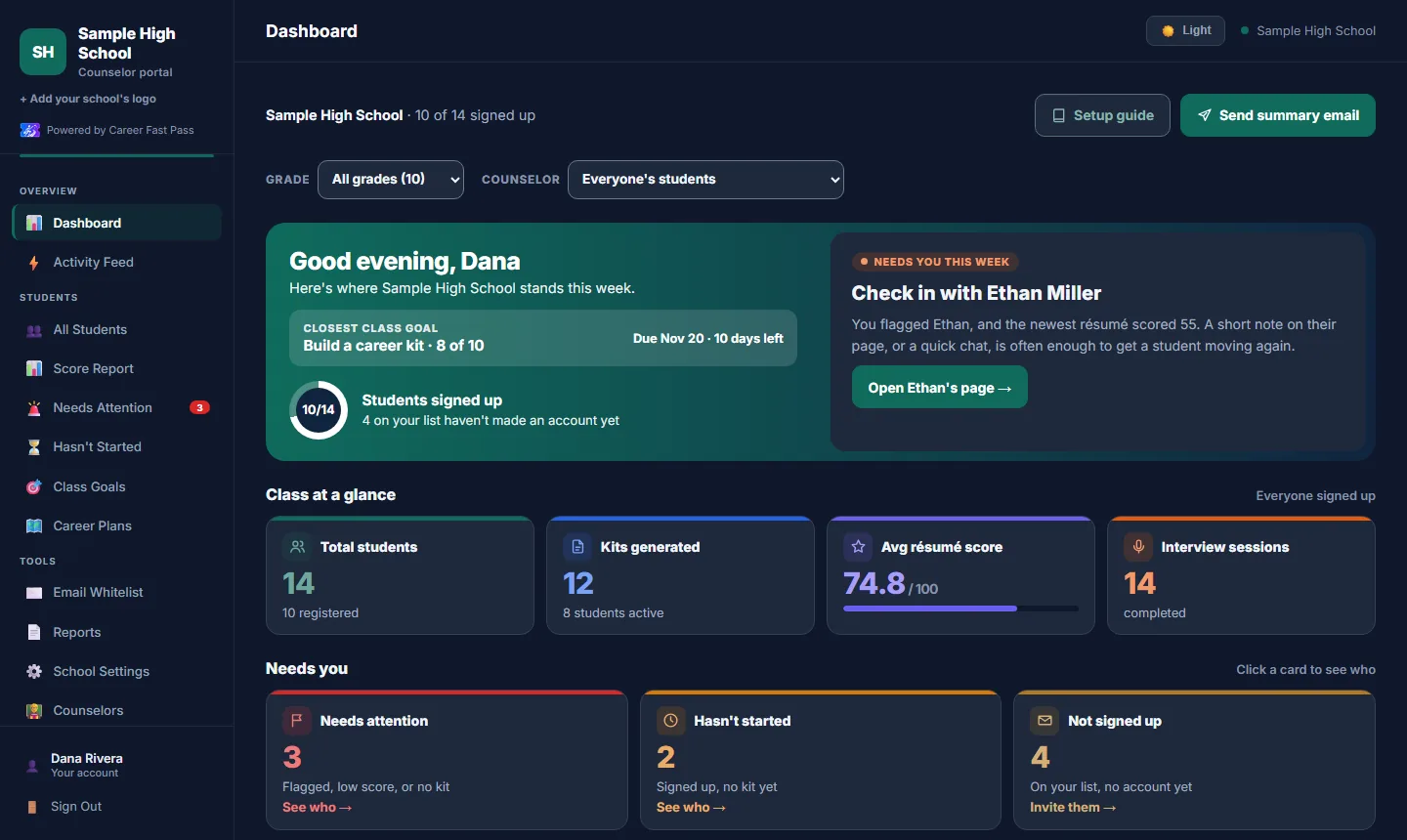
- Needs you this week: the one student most worth a check-in, and why.
- Class at a glance: students on your list and signed up, kits made, the average résumé score and interview practice.
- Needs you: cards for Needs attention, Hasn't started and Not signed up. Click a card to see who.
- Your recommended to-do list: the most urgent first, with buttons to add a note, email or invite.
- Class goals and how close the class is.
- Setup guide walks a new school through the first steps. Send summary email sends you this week's summary now; it also comes every Monday.
All Students and a student's page
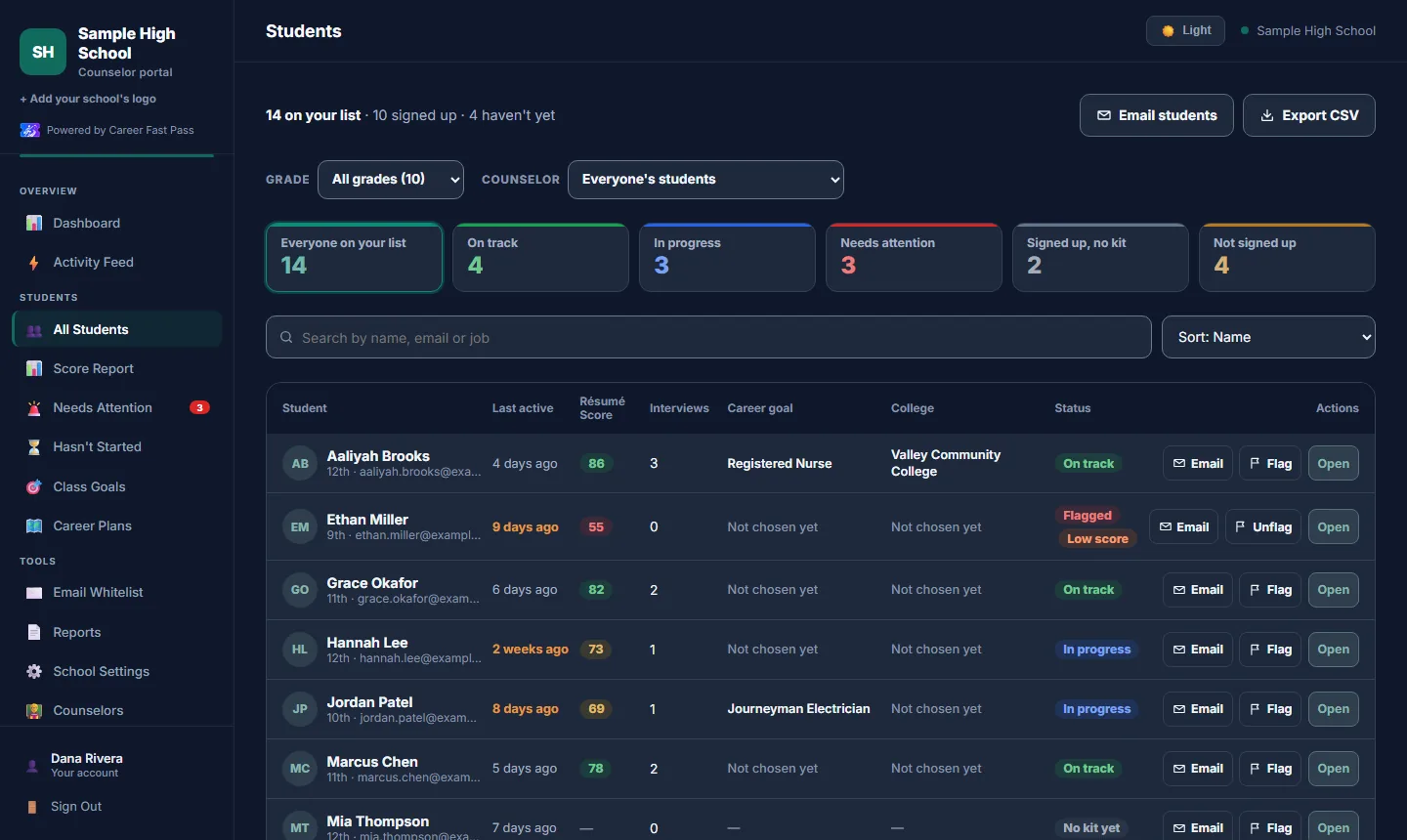
- Tiles filter by status: On track, In progress, Needs attention, Signed up with no kit, and Not signed up.
- Search by name or email, and sort by name, lowest score first or least recently active.
- Each row: last active, résumé score, interviews, career goal, college, status, and buttons to Email, Flag and Open.
- Email students writes to a group, such as everyone in 12th grade who hasn't built a kit. Export CSV downloads the list.
A student's page has their grade (taken from their answers, and you can change it), kits and scores, career goal and college choice, their Career & Education Plan, class goals, their résumé by area with the biggest gaps, and interview practice. You can add private notes, flag or unflag them, email them, and print or save the page as a PDF.
Needs Attention, Hasn't Started and the Activity Feed
- Needs Attention: students you flagged, with a low score, or without a kit.
- Hasn't Started: signed up but no kit yet. A short email often gets them going.
- Activity Feed: what students did in the last 7 days: kits made, interviews practiced and roadmap steps finished. Filter by student or kind.
Score Report
The class average, highest and lowest scores, how many are on track (75+) or under 60, and What your class needs most: the average in each résumé area, weakest first, so you know what to teach. Below it, every student's breakdown by area. Print it or export it as a spreadsheet.
Class Goals
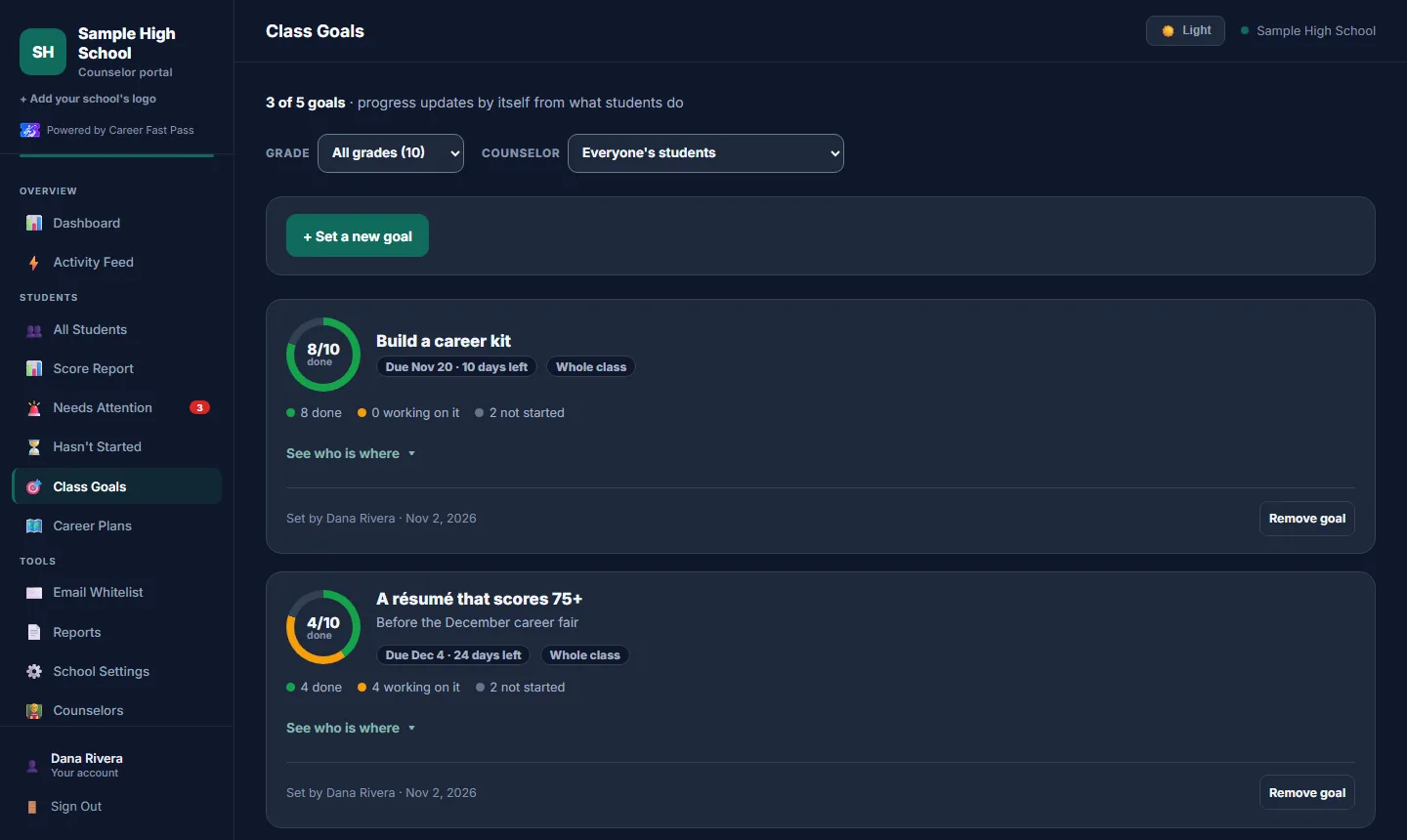
- Press + Set a new goal and choose what students should do: a résumé score, build a career kit, choose a career path, pick a college or training, practice interviews, an interview score, roadmap steps, or job applications tracked.
- Set the target and the date, and add an optional note for students (up to 140 characters).
- Choose the whole class or only some students, then press Set goal.
Up to 5 goals can be active at once. Progress updates by itself from what students do: done, working on it, or not started. Students see the goal and their own progress on their dashboard.
Career Plans
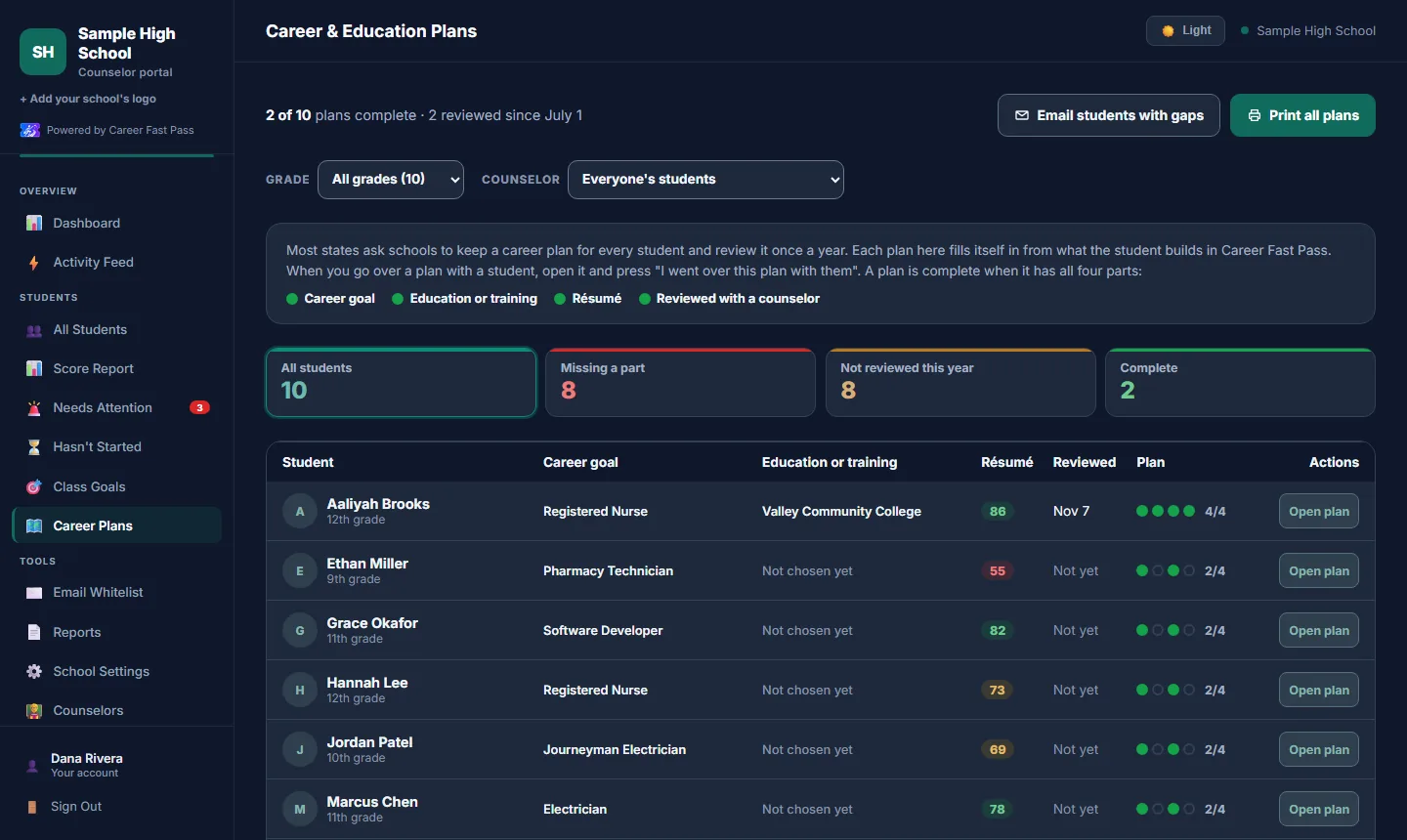
Each student's Career & Education Plan fills itself in from what they build. A plan is complete with four parts: career goal, education or training, résumé, and reviewed with a counselor. Open a plan and press I went over this plan with them after a meeting. Print all plans gives one page per student with signature lines; Email students with gaps nudges everyone missing a part. See also Career plans, reports and the data log.
Email Whitelist
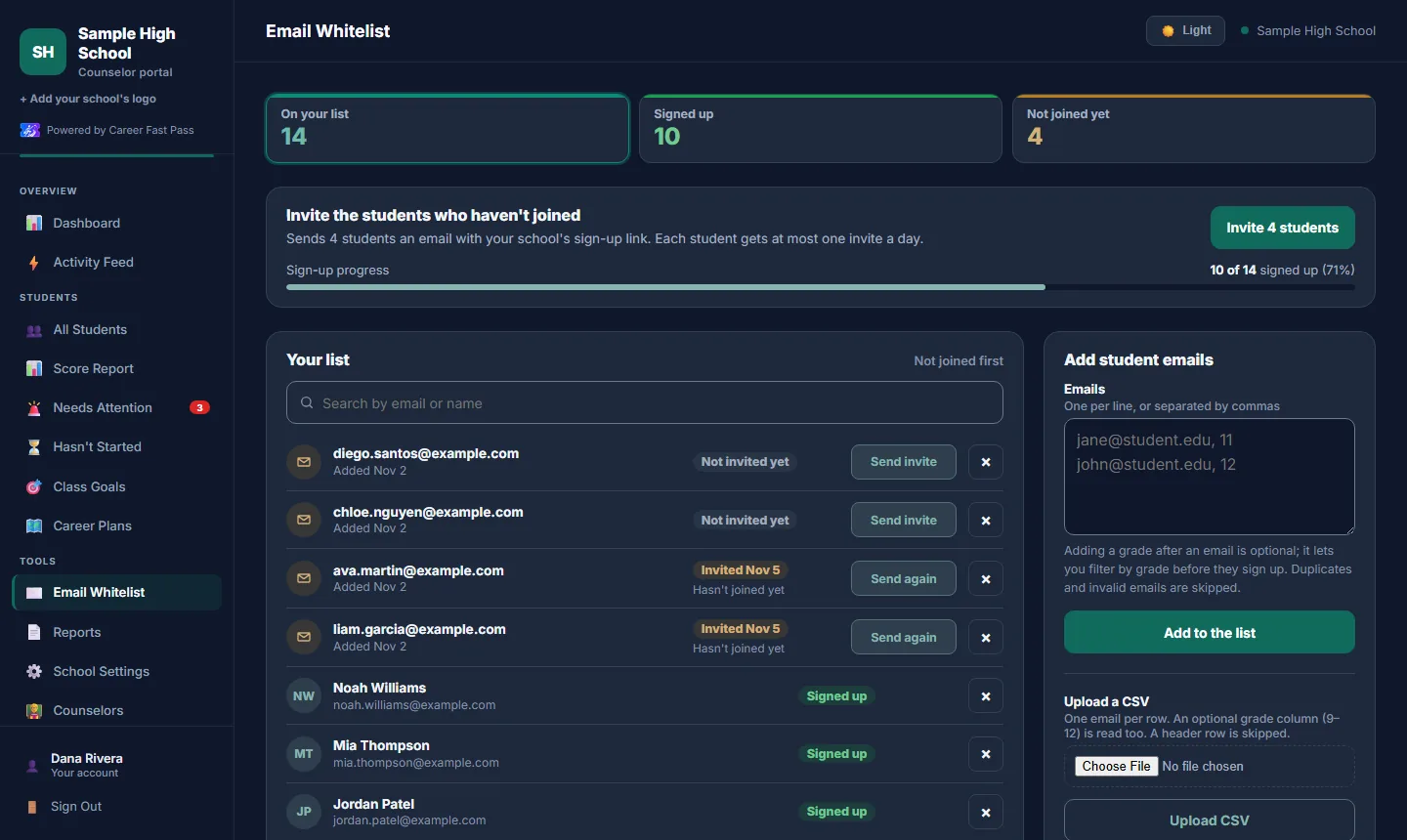
- Add student emails: one per line or separated by commas, with an optional grade after each.
- Upload CSV: one email per row, with an optional grade column (9 to 12).
- Invite emails every student who hasn't joined their sign-up link; each student gets at most one invite a day. Each row also has Send invite or Send again.
- Remove an email with ×, or Clear the whole list.
Reports and the data log
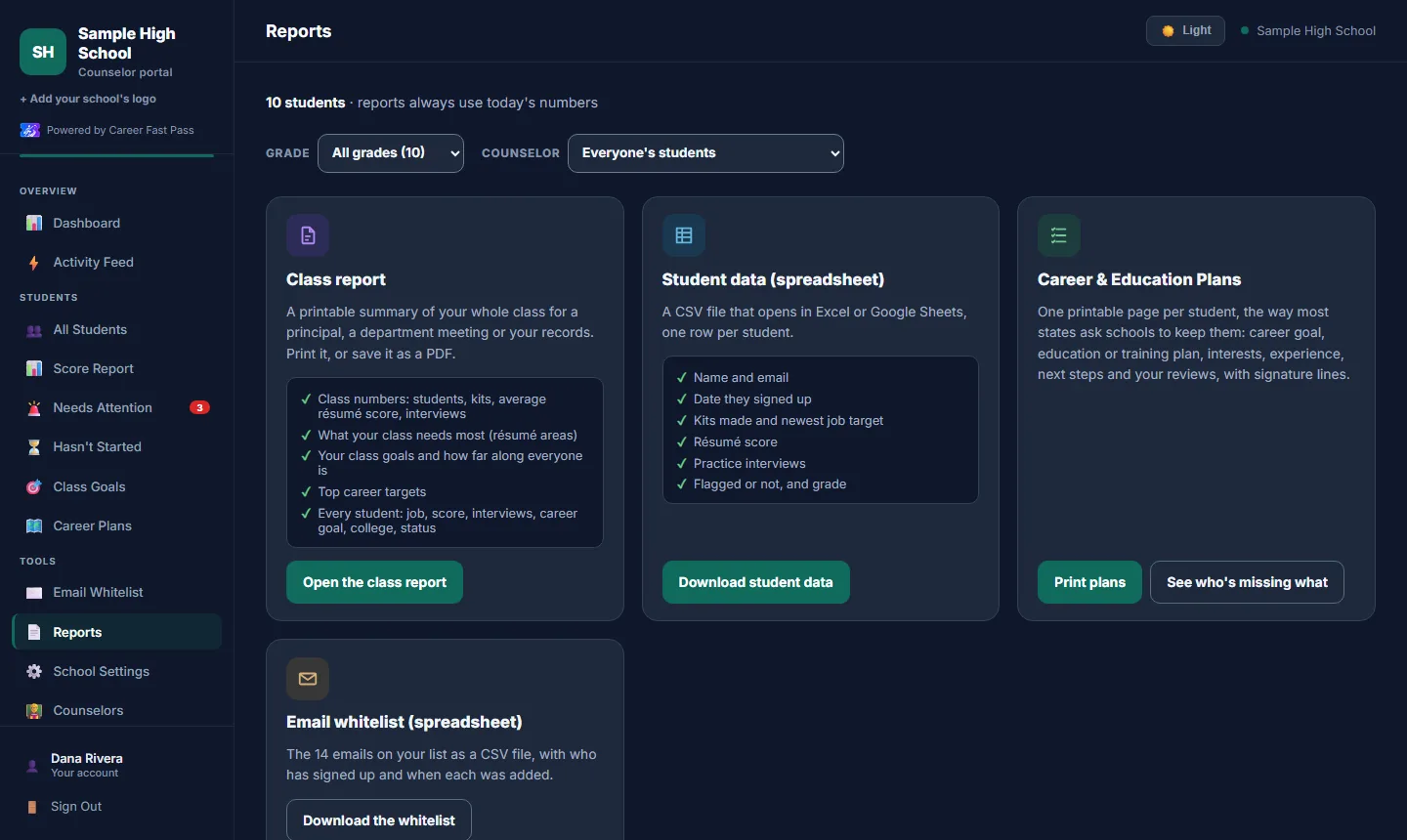
- Class report: a printable summary for a principal or department meeting.
- Student data: a spreadsheet, one row per student.
- Career & Education Plans: print them, or see who's missing what.
- Email whitelist: your list as a spreadsheet, with who has signed up.
These files hold students' names and emails, so keep them somewhere private. Every download and printout is recorded in the data log with who did it and when; school owners can open it from the link on this page.
School Settings
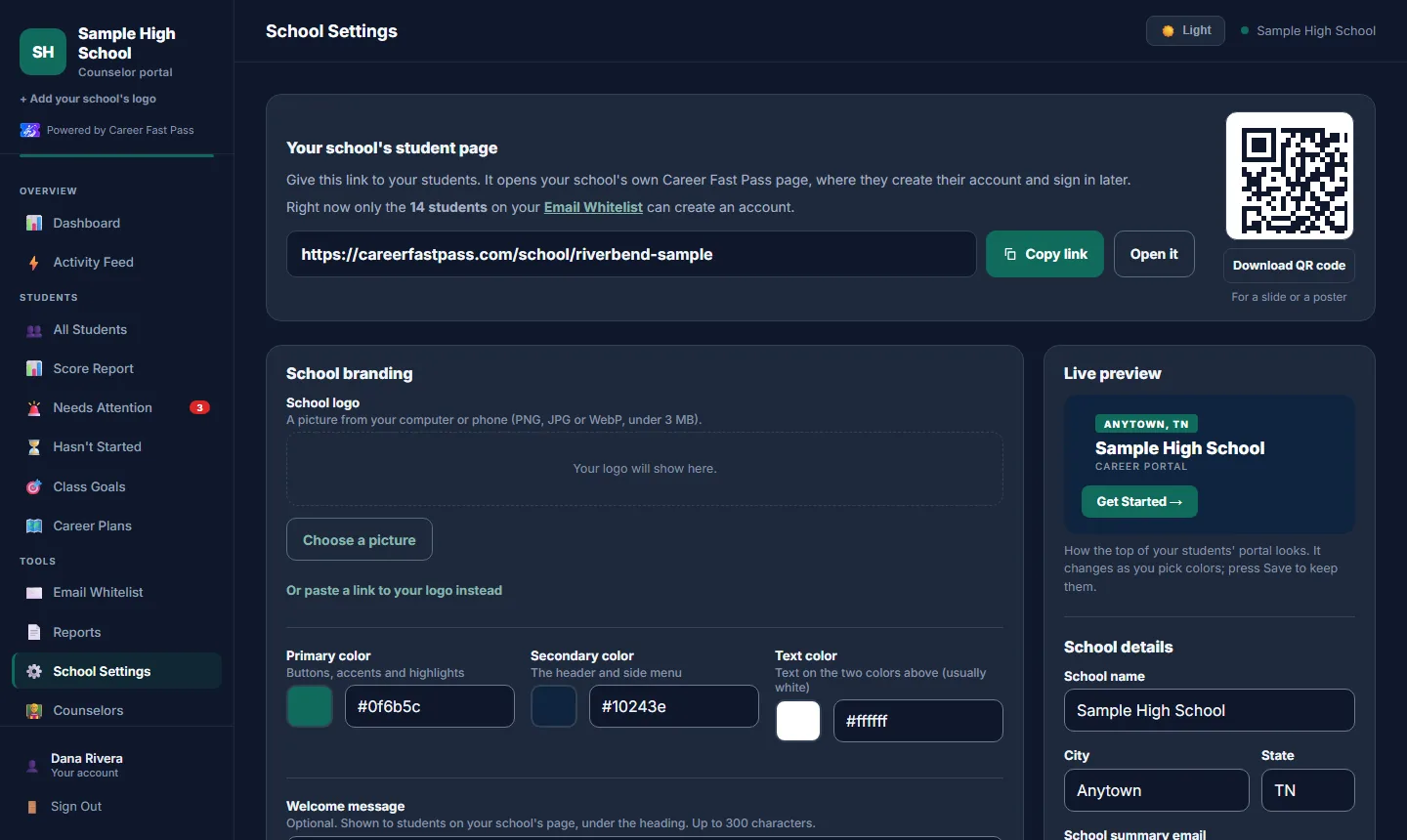
- Your school's student page: Copy link, Open it, or Download QR code for a slide or poster.
- School branding: upload a logo (PNG, JPG or WebP, under 3 MB) or paste a link to it; pick primary, secondary and text colors with a live preview; add a welcome message (up to 300 characters).
- School details: name, city, state, and a school summary email for the Monday summary.
Counselors and your account
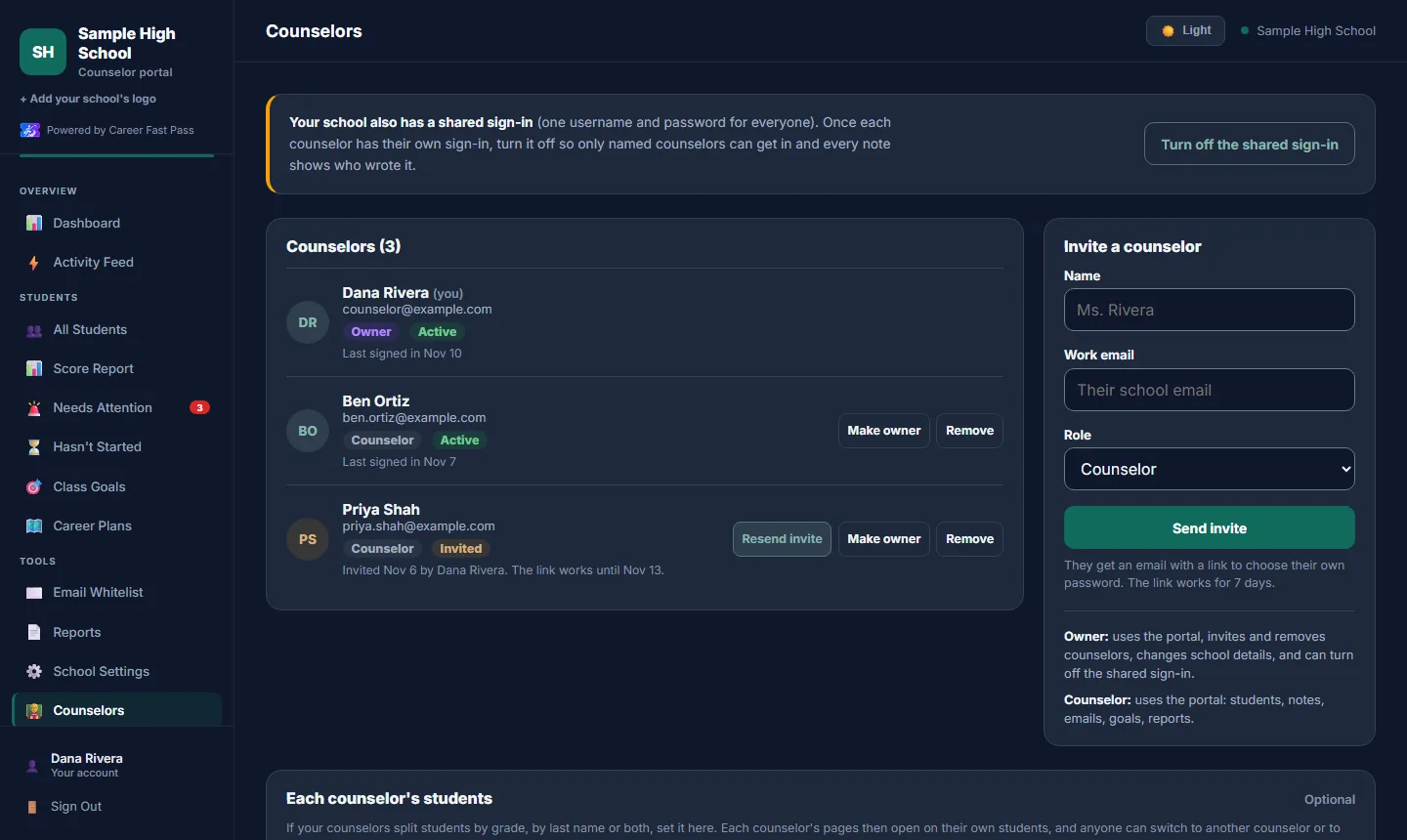
- Invite a counselor with their name, work email and role. Owners can invite and remove counselors, change school details and turn off the shared sign-in; Counselors use the portal.
- Each counselor's students: set grades, a last-name range or both.
- Sign-in codes: owners always get them on a new computer; you can require them for every counselor.
- Shared sign-in: once everyone has their own sign-in, turn the shared one off so every note shows who wrote it.
- Your account (bottom of the menu): your name and password.
What you see and don't see
You see your own school's students only: kits, scores, grade, career goal, college or training choice, roadmap progress, interview scores, plans and activity. Students' optional private answers (age, disability, accommodations, support needs, race or ethnicity, income, first-generation and veteran answers) are never shown in the portal or exports. Your notes are private to counselors at your school. See student privacy.